

Set up your account
The first step to getting Kaleo AI up and running is setting up your account. This only takes a minute.
1. Create your user account
You'll need to create a user account to log in to the Kaleo dashboard and start the translation, view history and analytics, and manage your plan and billing info.
- Go to the signup page
- Fill in your name, email, and create a password (or sign up with your Google account)
- Check your email for a verification link to confirm your account
Want others to manage your account? You can invite team members from the Team Members page in the dashboard.
2. Create your church profile
You'll need to create a profile for your church so people can access your live translation.
-
Once you've created your account, click the button to Create a new church team
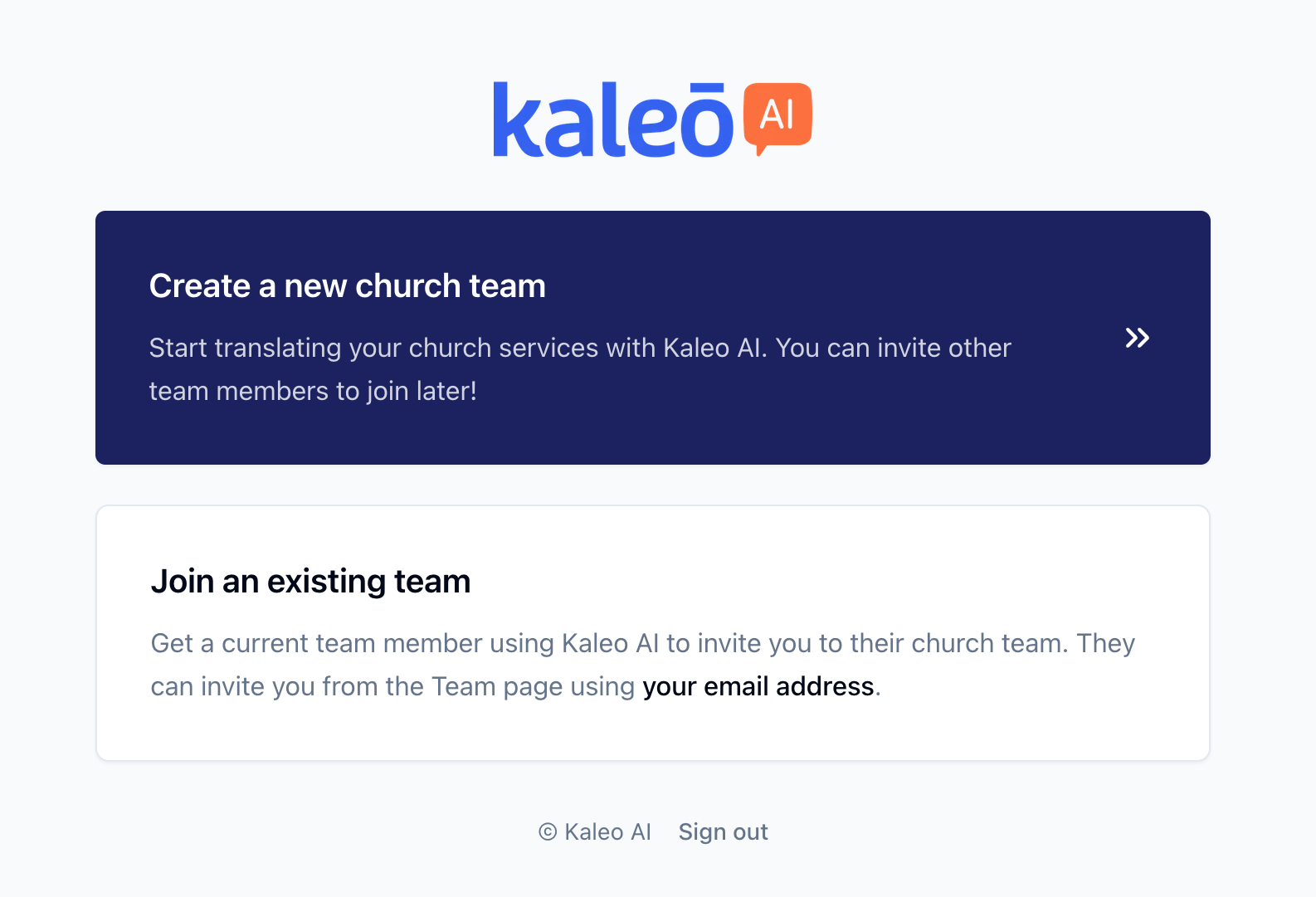
Once you've created your account, you can create a church team -
Set the display name for your church - this is what people will see when accessing the translation
-
Choose a handle and location. Your location shows up in the mobile app so people know which church is yours
-
Click Get Started - and that's it! You'll be redirected to the dashboard where you can continue getting set up.