

Set up your audio input
This is the most important part of the setup. Kaleo AI takes a live audio feed from your church, translates it, and broadcasts it to everyone's mobile devices. You'll need to use a computer, probably in your tech booth, to stream your live audio and manage the translation in the Kaleo dashboard. Then everyone can follow along with the translation on their own devices.
Use a computer
You'll need to use a computer running a modern browser (Chrome, Safari, Firefox, Edge, etc.) to stream your live audio. Streaming from tablets and phones isn't supported yet - but stay tuned for a mobile solution coming soon 👀
Getting your live audio feed into your computer
The first step is getting your live service audio into your computer, which is the "source" that Kaleo will translate. You can send your main/LR mix from your sound system, or any audio feed with what's happening in your room. There's lots of ways to make this happen, it really depends on your preference. If you're livestreaming or recording your sermons onto a computer, most of the setup is probably done already. Here's a few options:
- The USB interface on almost all digital consoles (Allen & Heath, Digico with UB MADI, Behringer, Yamaha, Midas, etc.)
- An analog line output from your console into a USB audio interface like a Scarlett, M-Audio, MOTU, etc.
- Dante Via or Dante Virtual Soundcard
- Blackmagic / HDMI / SDI capture card - if your service audio is embedded in a video feed, you can use a capture card or various Blackmagic products (DeckLink, UltraStudio, Streaming Encoder, ATEM USB connection) to bring it into your computer
Important
If you're using a multichannel audio interface, please send your audio for Kaleo down the first two channels (1 & 2). Due to operating system limitations, we can only read the first two channels of any audio interface.
Enable audio access for the Kaleo dashboard
Next, you'll need to allow the Kaleo dashboard to access your computer mic inputs if you haven't already.
-
Make sure you're logged in to the Kaleo dashboard on your computer. Once you're logged in, click Enable audio access in the right-hand sidebar.
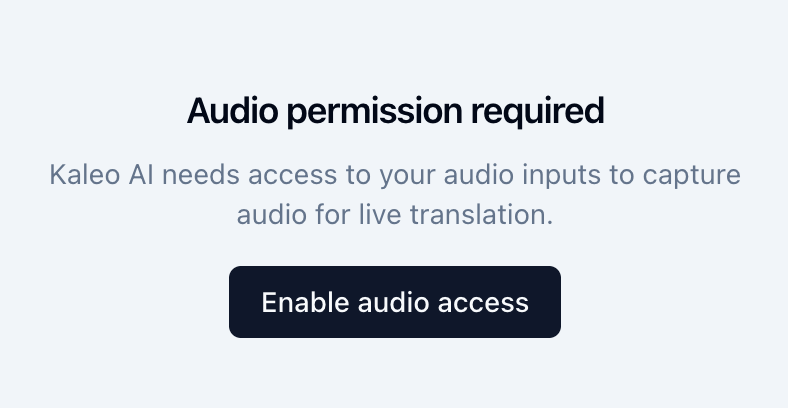
Click Enable audio access in the right-hand sidebar. Don't see the button?
If you see the Streaming Controls in the right-hand sidebar instead, the Kaleo dashboard already has access to your microphone inputs. You can skip this step.
-
The browser will ask whether you want to allow microphone access for Kaleo AI. Click Allow while visiting this site.
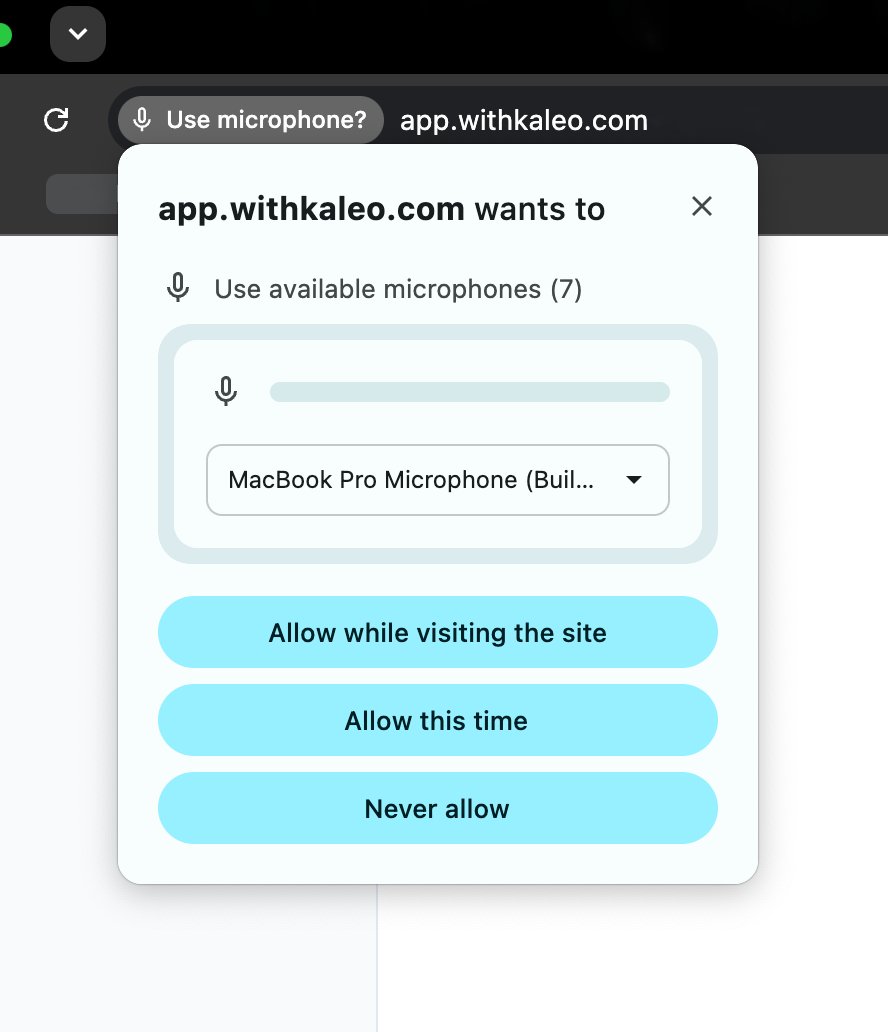
Choose Allow while visiting the site in the browser permission prompt. If you don't see a prompt to allow audio access, or you get an error message, follow the instructions to set up microphone access for Chrome, Firefox, or Edge.
-
Once you've allowed audio access for the Kaleo dashboard, the Streaming Controls should appear in the right-hand sidebar. Continue to the next step.
Select and test your audio input for translation
Now that Kaleo can access your computer mic inputs, you should see the Audio Source picker in the right-hand sidebar. Pick the input you're using to get audio into this computer. Use the signal tester to verify the input is working properly and Kaleo can see the signal.
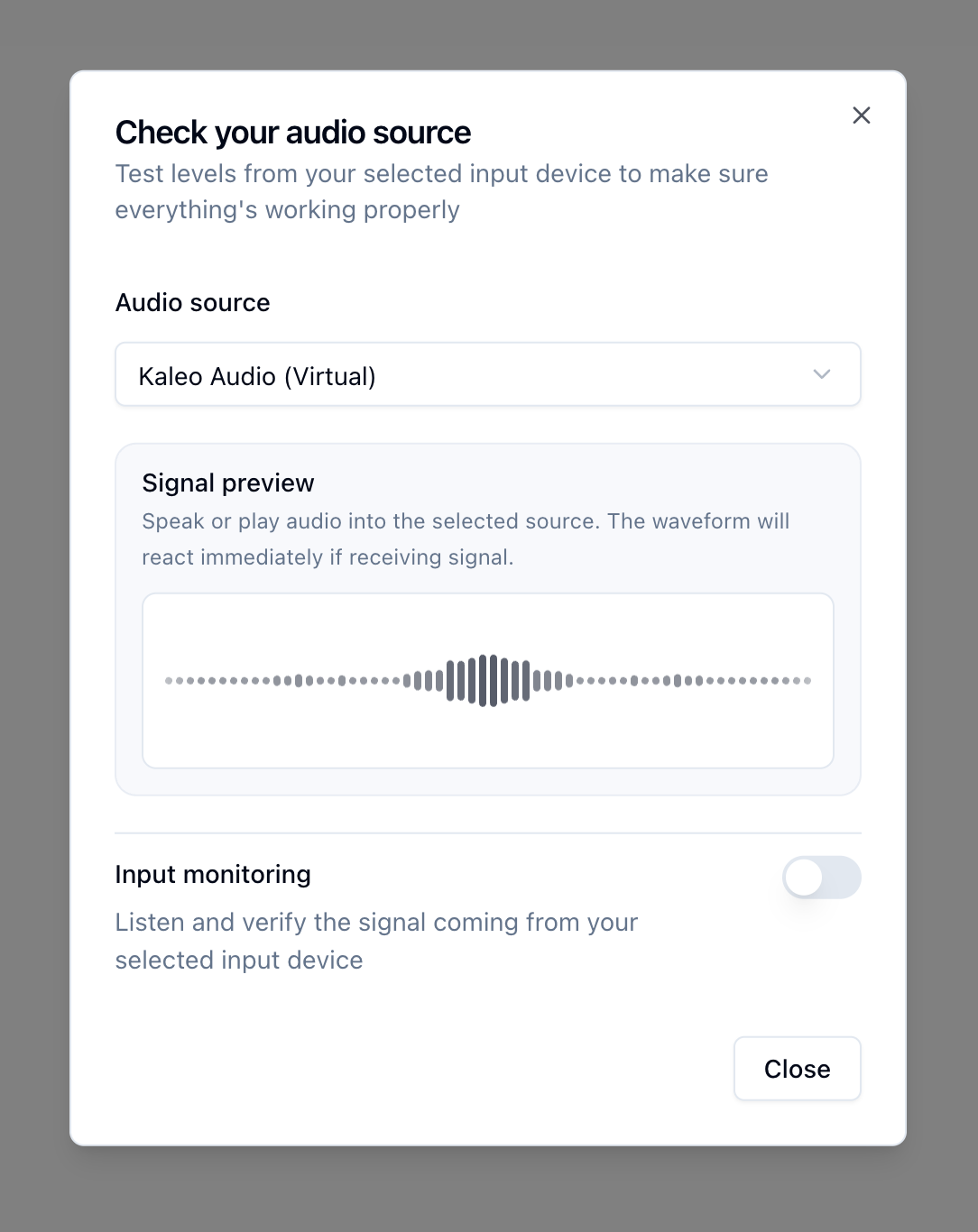
If you can see your audio input working in the signal tester, you're ready to start translating!
⚠️ If you can't get your input working properly
Try these troubleshooting steps:
- Restart your computer and reopen your browser. Especially if you had to grant audio access for Kaleo, it may take a restart for the changes to apply.
- Check whether the source interface has an audio meter. For example, most USB interfaces have a physical LED meter, and your capture card should have control software that lets you check the audio status. If the source interface isn't getting any signal from your sound system, fix that first before continuing with Kaleo setup.
- Make sure you're sending audio for Kaleo down the first two channels (1 & 2) of the audio interface. Due to operating system limitations, we can only read the first two channels of any audio interface.
- Check your audio input in another app, such as Zoom, to see if it meters there. If it's not metering in another app, it won't work in Kaleo either.
- Check that the sample rate of your audio interface matches your sound system. Most USB audio interfaces have control software that lets you adjust the sample rate. If the sample rate of your audio interface doesn't match your sound system, where the original source is coming from, it may not work properly in Kaleo.
- and we'll do our best to help!