
Appearance
You can customize the visual appearance of your live translation page on the Appearance page in your dashboard. Use the live preview to see how your changes work in light and dark mode.
Your changes save automatically. Anyone who already has your translation page open will need to refresh to see your latest changes.
Logo
Upload your church’s logo as a PNG, up to 2 MB. A transparent background is recommended. You also have the option to upload a second logo when the viewer is using dark mode.
Accent color
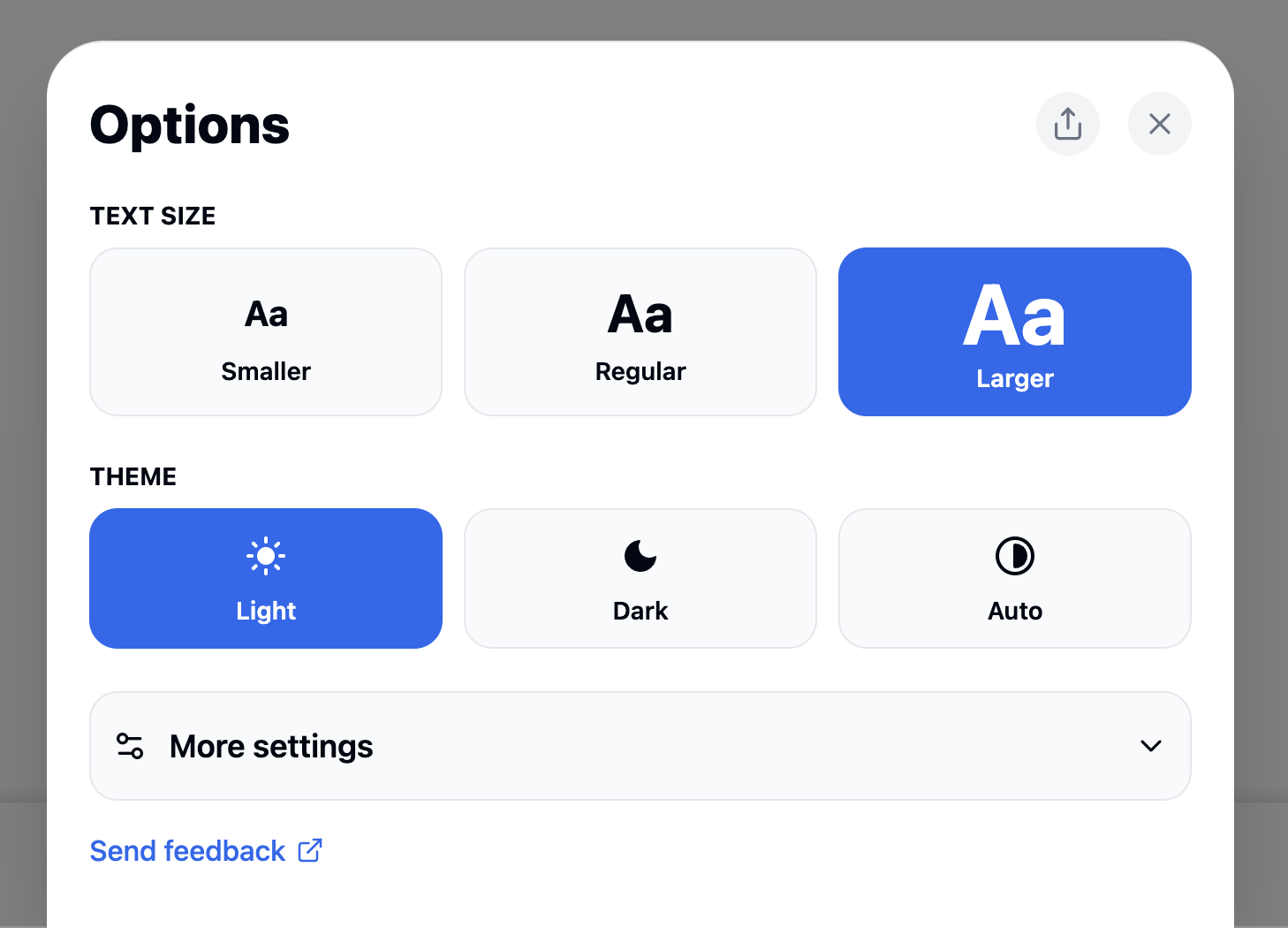
Choose an accent color for the buttons and controls on your translation page. This color is used for highlighted/activated buttons like the Listen button, the selected language, and other controls as seen below. You can specify an alternate color for dark mode too.
Heading and message
The heading and message appear on the welcome screen before a stream starts. You can change the text or use the toggles to hide either one.
Listen mode
Whether to allow speech translation for your church. When disabled, only captions are available.
-
Prominent listen button. Makes the Listen button larger and more prominent. This option is disabled by default.
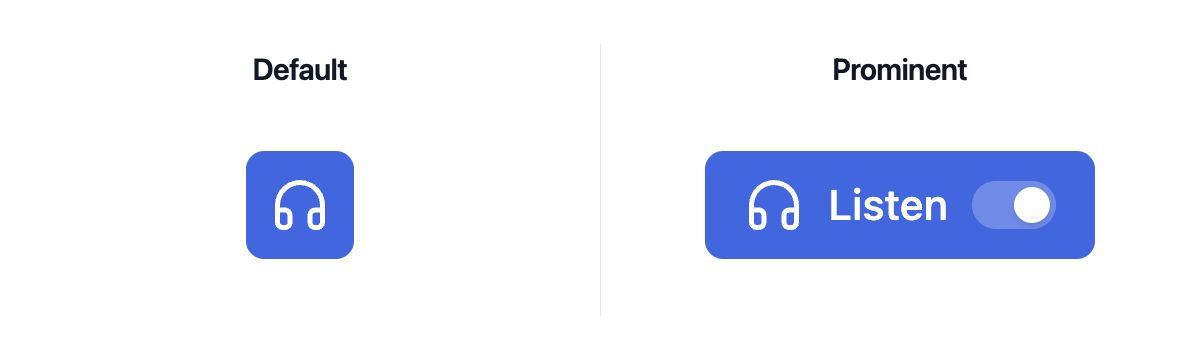
Default Listen button (left) and prominent Listen button (right), shown with Listen mode on.
Show church name in bottom menu
Show or hide your church’s name in the bottom menu. You can change your church's display name in the Account page in your dashboard.
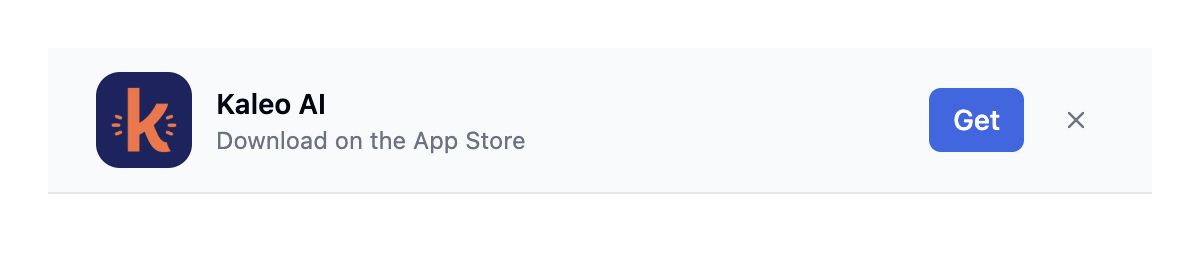
Show app download banner
Show a link to download the Kaleo AI app when someone opens your translation page on a supported mobile device.
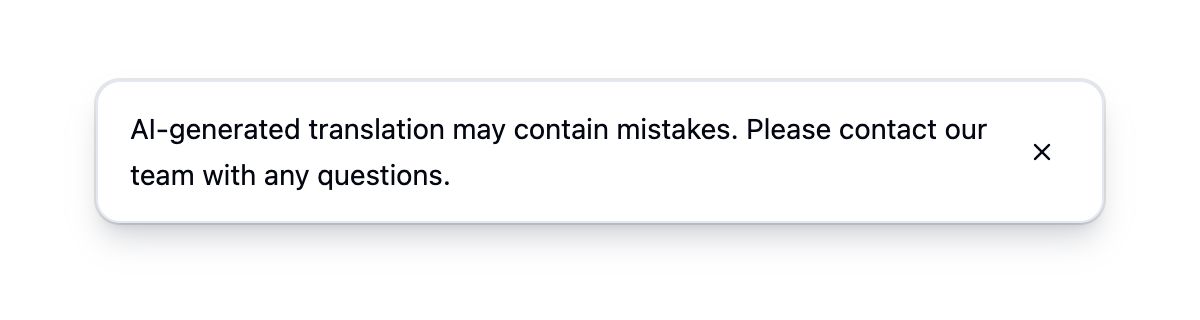
Custom message
Show a custom message to viewers on your translation page. For example, you may want to provide a notice that the translation is AI-generated. When people dismiss your custom message, it isn't shown again until you change it.
Featured languages
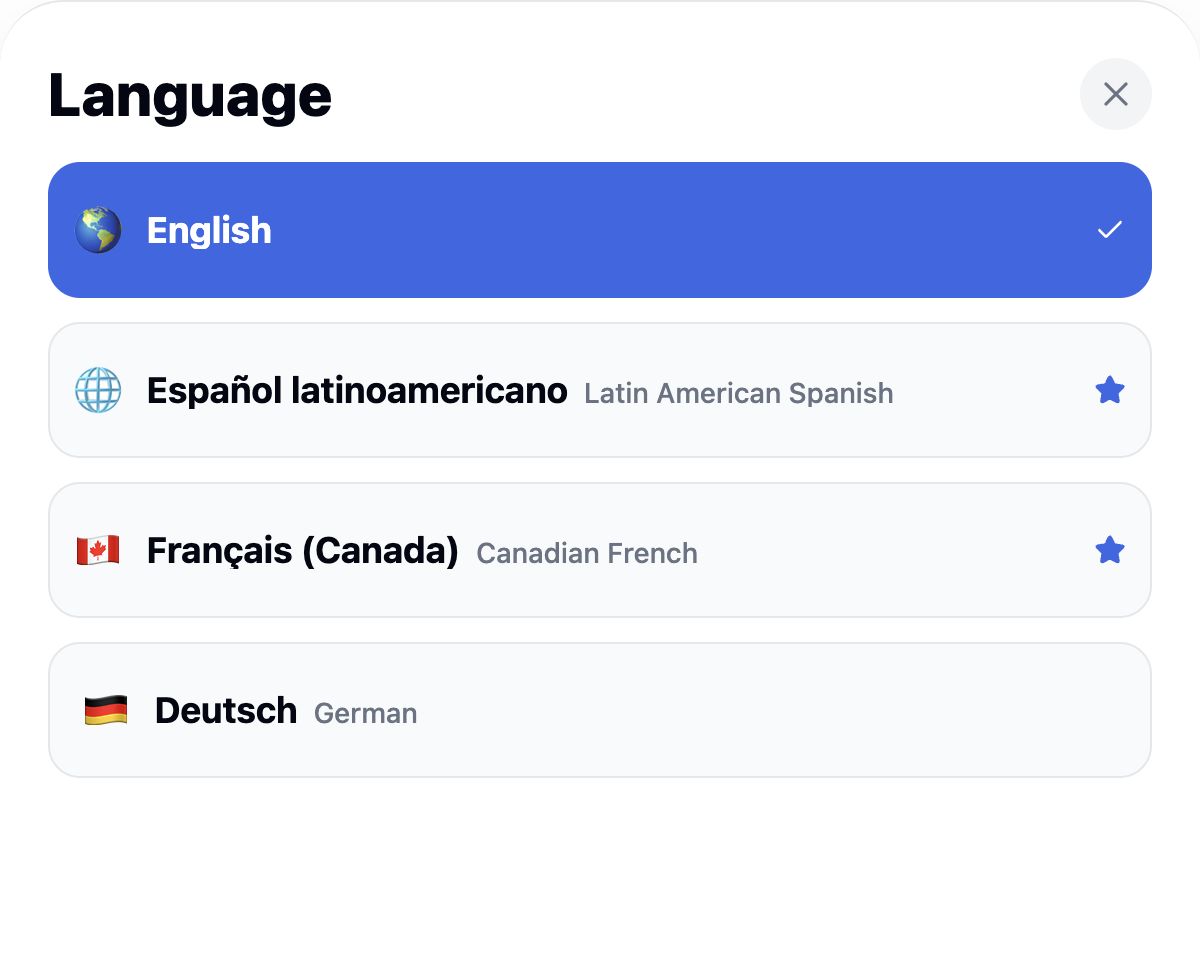
Show these languages at the top of the language picker on your translation page to make them easy to find. This is great for churches on the Unlimited plan with 202 languages available to choose from!