

ProPresenter
Translate your song lyrics and slide contents directly out of ProPresenter in real-time. This ensures song lyrics are perfectly recognized and translated without mistakes from the voice transcription.
Slide contents are shown as special captions in a streaming session, as seen below:
Connect your ProPresenter computer
-
To get started, follow the instructions to download, install, and pair Kaleo Connect on your ProPresenter computer.
-
Open ProPresenter Settings > Network and make sure network control is enabled. Take note of the port number for the next step.
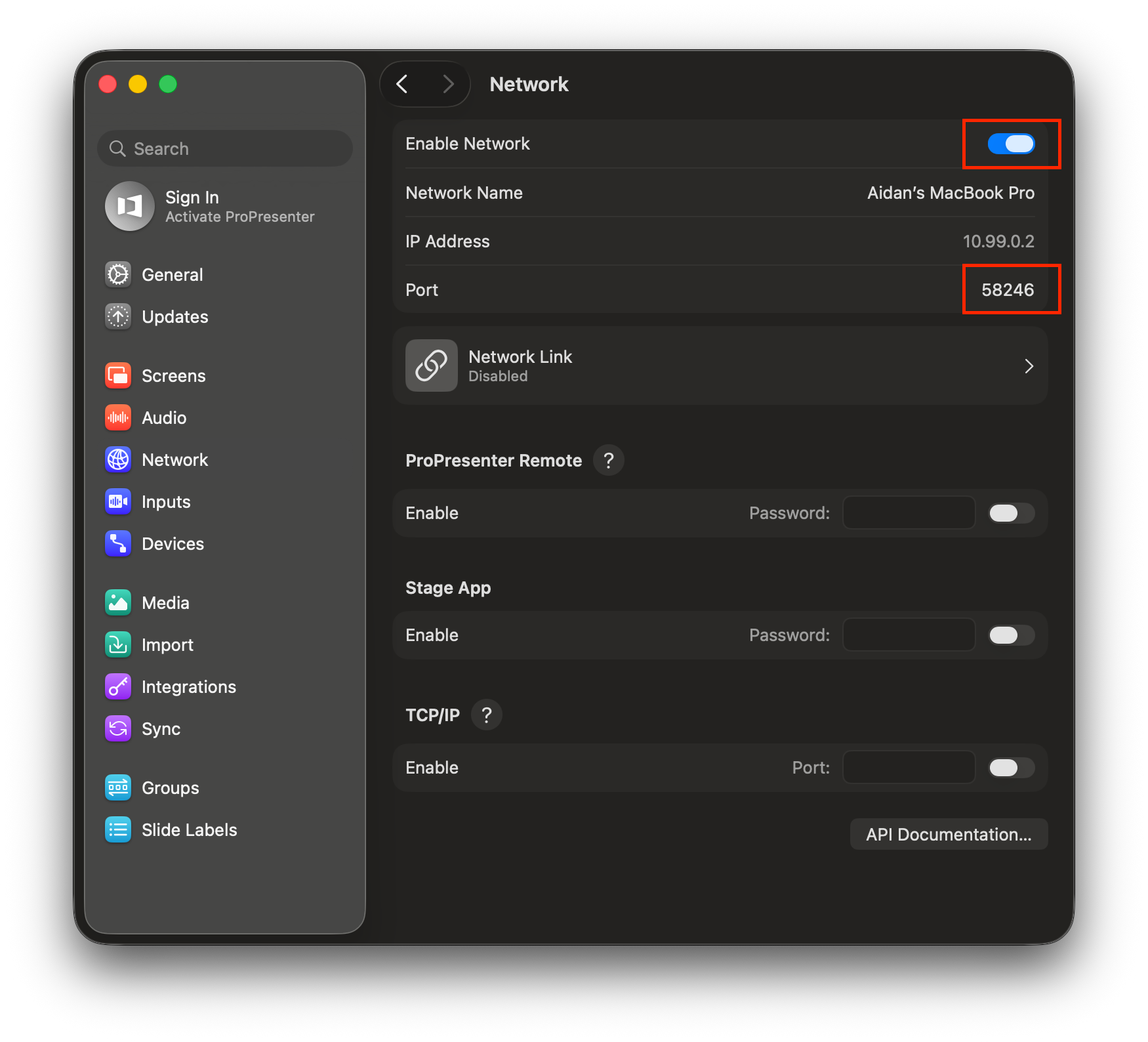
Enable ProPresenter network control and note the port number -
Back in Kaleo Connect, go to the ProPresenter tab and enter the port number from the previous step to connect.
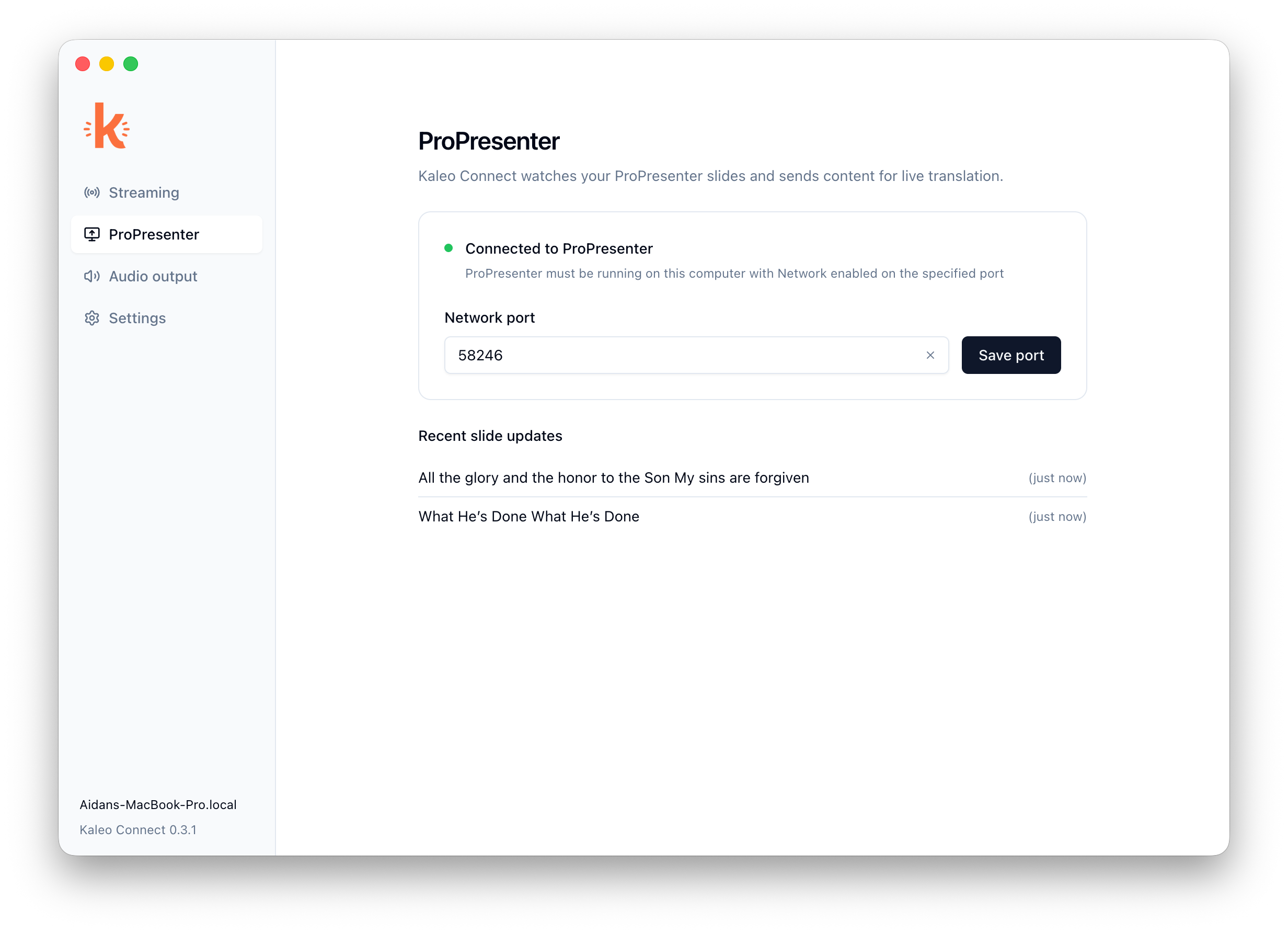
Enter the ProPresenter port number in Kaleo Connect -
Once connected, the status will turn green and this computer is ready as a ProPresenter source!
Activate the ProPresenter source for a stream
Once you have set up the ProPresenter integration in Kaleo Connect, you can get translated slide contents into your stream. This is activated in two ways:
-
Select the ProPresenter source in the streaming controls "More options" dropdown.
In the web browser or Kaleo Connect streaming controls, choose from any ProPresenter source paired with your account, or choose None to prevent slide contents from going to the stream.
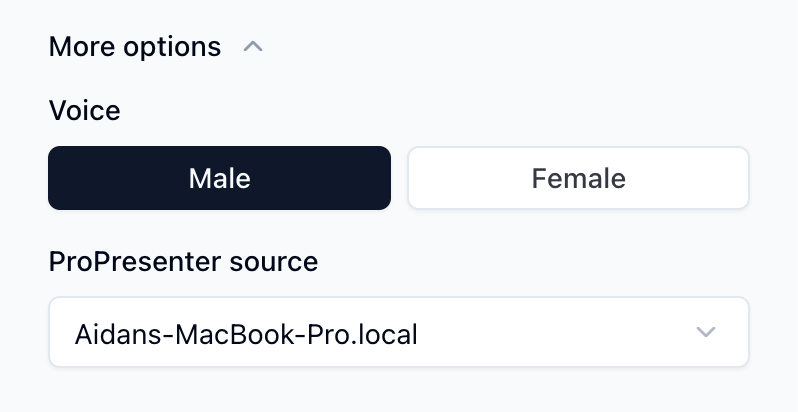
Select the ProPresenter source under "More options" If you don’t see the ProPresenter source selector under “More options”, you don’t have any ProPresenter computers set up with Kaleo Connect yet. Please follow the steps above to connect.
-
Select the ProPresenter source when configuring a scheduled event
Configure the ProPresenter source for a scheduled event. You can use the default setting (configured above) or a different source for that event. Please refer to our scheduling docs for more detail.